
To customize the appearance of the chat widget, you can go to Settings > Channels > Web > Appearance.
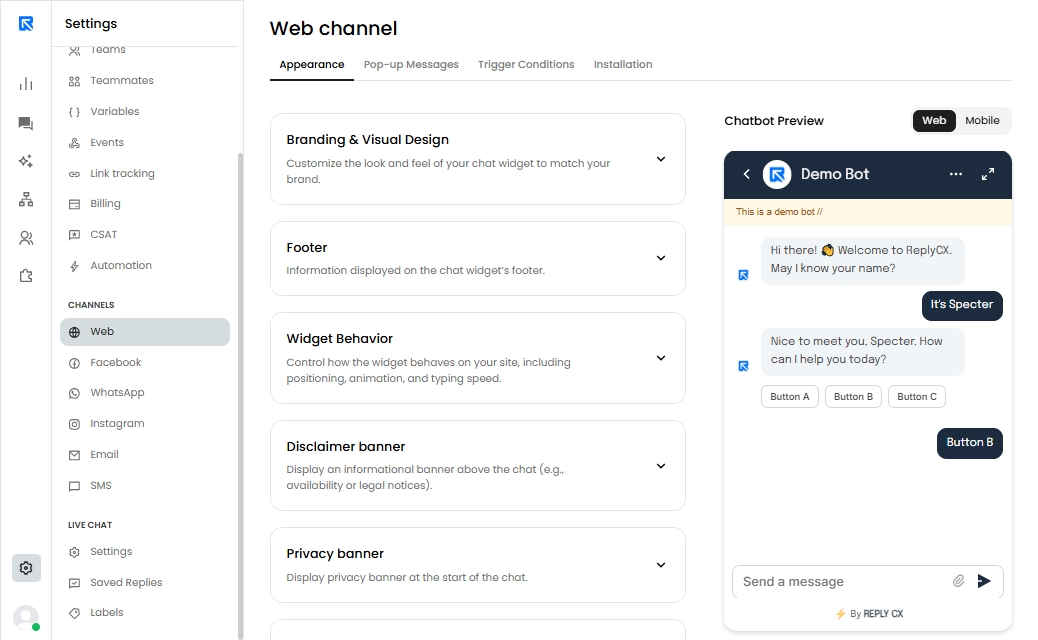
There are multiple customization options offered:
Branding & Visual Design
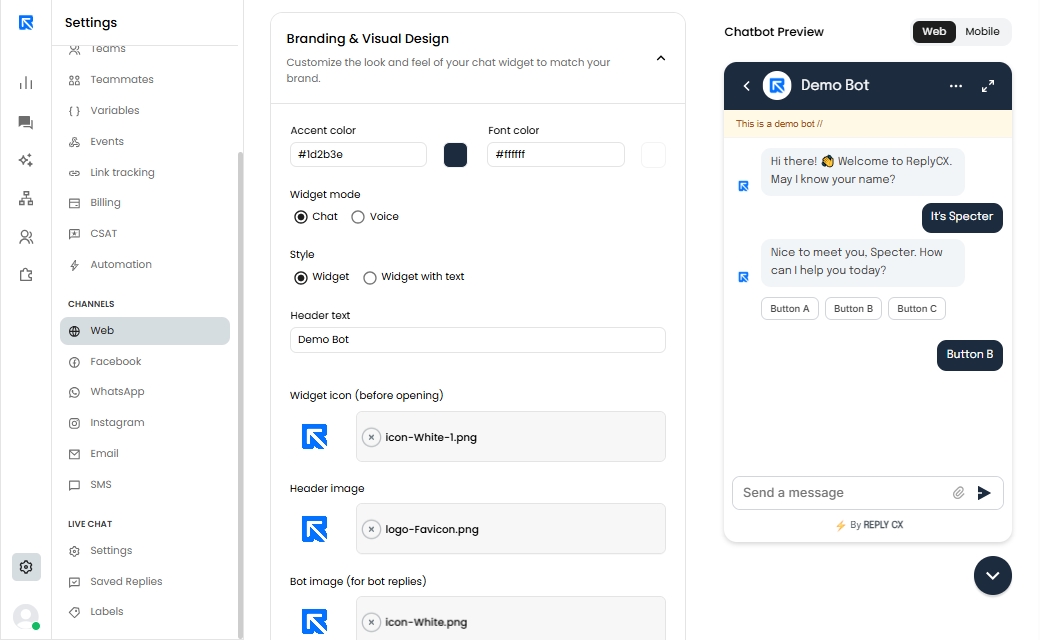
Configuration | Description |
|---|---|
Accent color | Customize the chat widget theme by selecting an accent color, which will be applied to the header, user message bubbles, and other interface elements. |
Font Color | Defines the color of the font in the chat widget. |
Style | Widget Displays a floating chat bubble with a widget icon in the bottom corner. Widget + Text Displays a rectangular floating chat bubble with customizable text next to the widget icon. The text can be customized up to a specified character limit. |
Header Text | The Name of the chatbot |
Widget icon | Image to be displayed as the floating chat bubble. |
Header Image | Image to be displayed on the header when the chat bubble is opened. |
Bot Image | Image to be placed next to the bot messages in the chat screen. |
Footer
Information displayed on the chat widget's footer.
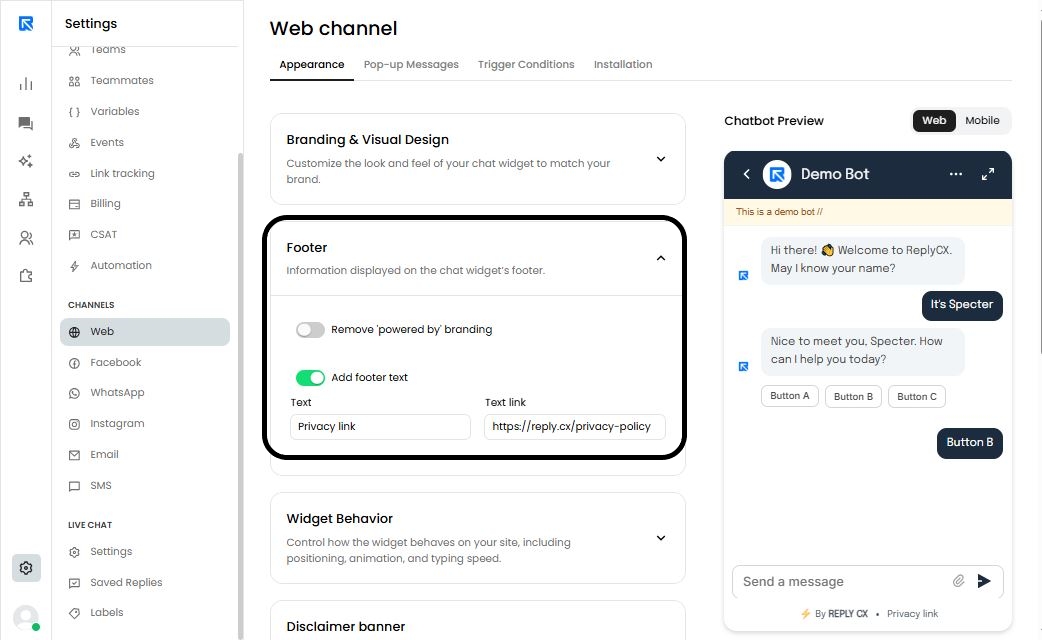
Configuration | Description |
|---|---|
Configuration | Description |
Remove "powered by" | Enabling this option removes the “Powered by ReplyCX” branding from the footer of the chat widget. |
Footer Text | You can add a privacy policy text next to the “powered by” branding. It will appear as a clickable link that opens the webpage of your choice. |
Widget Behaviour
Control how the widget behaves on your site, including its position, animations, and typing speed.
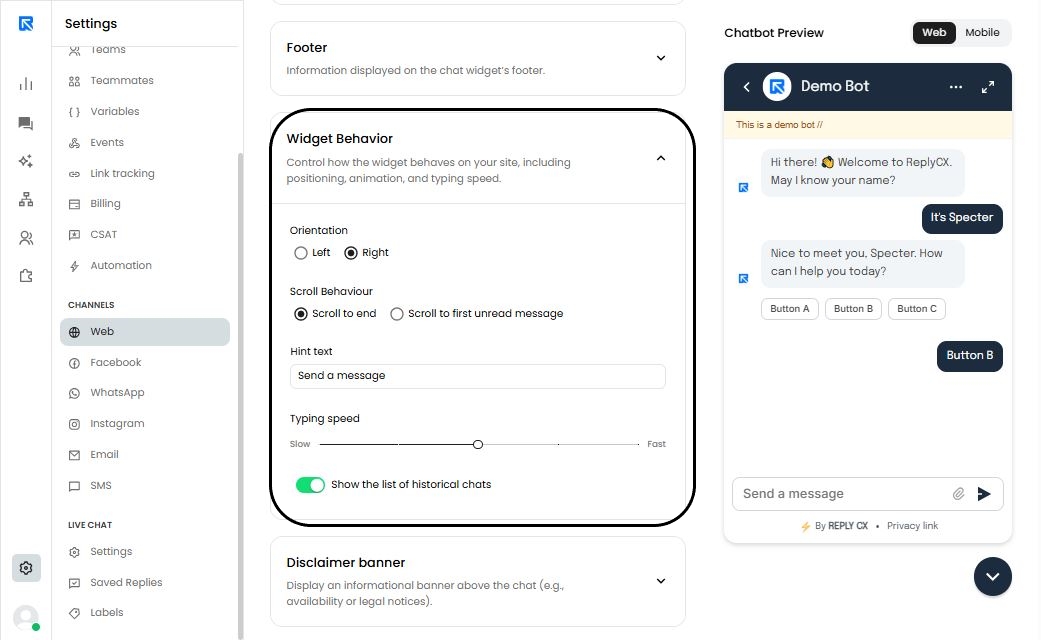
Configuration | Description |
|---|---|
Orientation | Displays the chat widget on the bottom left corner OR the bottom right corner of the webpage. |
Scroll behaviour | Scroll to end With every new message from the bot, the page automatically scrolls to the latest message. Scroll to first unread message The user’s position on the page remains unchanged. Instead, a “New messages” badge appears at the bottom, and clicking it takes the user to the first unread message. |
Hint text | Placeholder text to be shown on the chat widget input box. |
Typing speed | Adjust how quickly you want a bot to send the response. |
Show historical chats | Enabling this will display a back button next to the header image. Clicking it will show all of the user’s past chat history. |
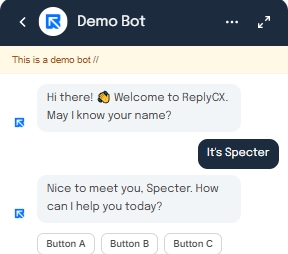
Disclaimer Banner
Display an informational banner above the chat (e.g. availability or legal notices)
Enabling this will allow user to define the message to be displayed.
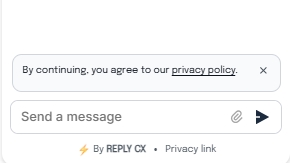
Privacy Banner
Display the privacy policy banner at the start of the chat.
Chat Session Behaviour
Setup the settings how cookies are handled when the page gets reload.
On Page Refresh :- 🡪 Start a new chat
🡪Retain Existing chat
Cookie Settings:- 🡪 Always Added
🡪 Manually added
Sounds & Animation
Control how the notification sounds and animation preferences are used.
Config | Description |
|---|---|
Play Sound | Enabling this will play a sound for each message sent or received on the chat screen. |
Stop Bouncing animation | Enabling this will stop the bouncing animation displayed on the chat widget icon before it is opened on the webpage. |
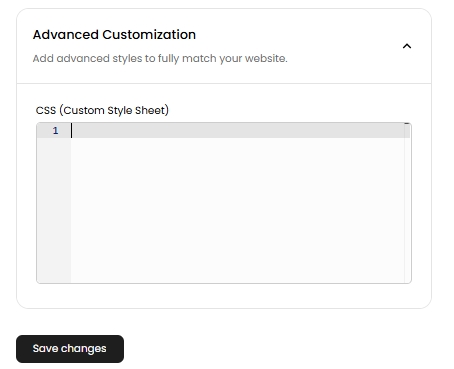
Advance Customization
To further customize the chat widget, add your own custom CSS code here to modify its styling.
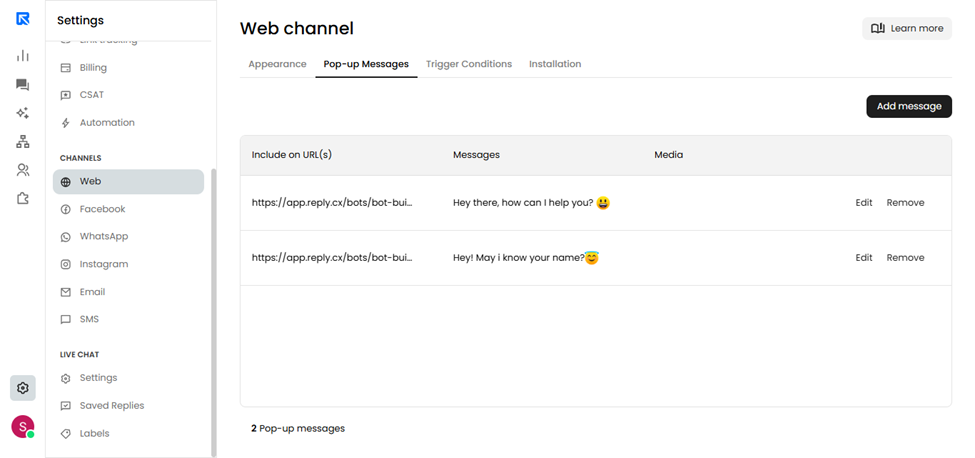
Pop-up messages
Pop-up messages are small snippets of text shown on the chat widget before opening it.
The purpose of using pop-up messages is to increase engagement on the chatbot.
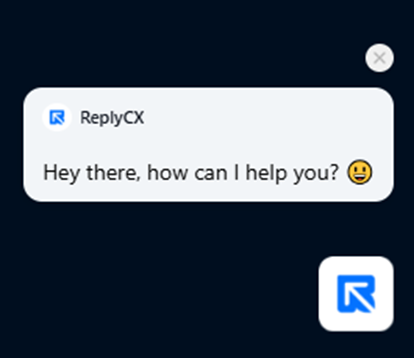
You can add different pop-up messages for each page of your website. Each pop-up message can contain - either 1-line text / media.
JS functions to trigger chat widget
JavaScript functions to display and hide the chat widget on your webpage. Execute the following JavaScript functions to trigger the chat widget on your web page.
1. Opening the chat widget
wn.openWidget();
//Opens the chat window but minimizes it when clicked on the cross
wn.openWidget(true)
2. Hiding the chat widget
wn.hideWidget();3. Showing the chat widget
wn.showWidget();
//Shows the chat bubble but minimizes it when clicked on the cross.
wn.showWidget(true)