Overview
The Calendar Action Block enables users to select a specific date directly from an interactive calendar interface. It is commonly used to facilitate appointment bookings, reservations, and date-based scheduling within your workflow.
Example prompt to visitors: "Please select your preferred date to book an appointment."
Applications:
- Travel & Tour Registration
- Restaurant Reservation
- Movie & Entertainment Ticket Booking
- Delivery & Shipping Scheduling
- Interview & Recruitment Scheduling
Setting Up the Calendar Action Block
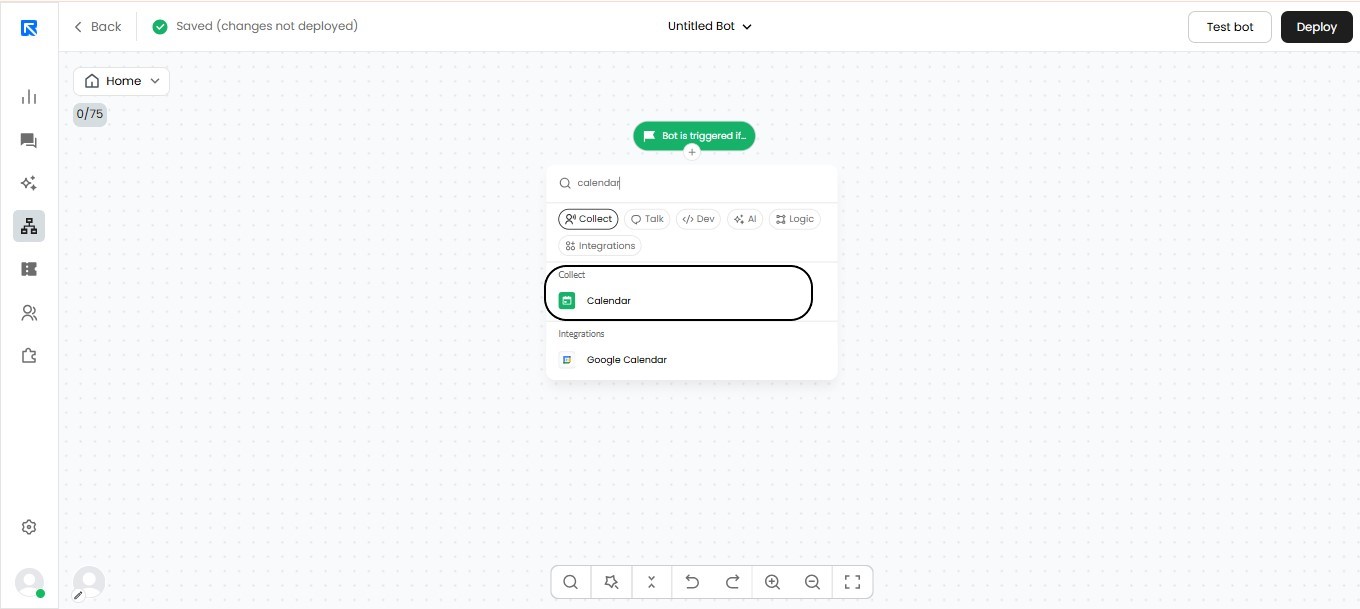
Step 1: Add the block to the canvas by clicking the '+' button.
Step 2: Search for "Calendar" in the search bar and select it from the results.
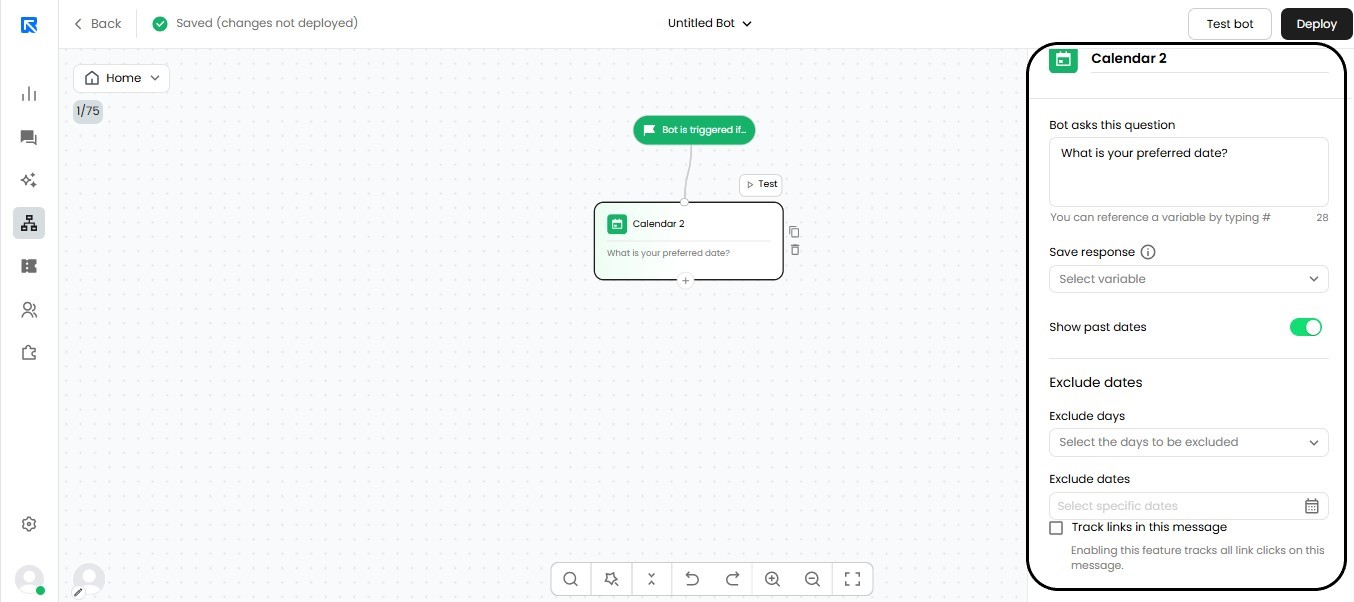
Step 3: Click on the Calendar Block to open its configuration panel.
Step 4: In the "Show Message" field, enter the message you would like to display to visitors alongside the calendar. This message should guide users on what action to take, for example, prompting them to select a date for their appointment.
Step 5: Select the nature of date selection from the available options based on your use case. If you don’t want to show Past dates, then you can enable this option.
Step 6: Navigate to the "Exclude Dates" tab to define any dates you wish to hide from the calendar view. This is useful for blocking out unavailable or restricted dates.
Step 7: Click the down arrow button to expand and display all days of the week.
Step 8: Select the specific days of the week you wish to exclude or include from the provided list.
Step 9: Click the calendar icon to switch to the monthly view, displaying all dates and days within the selected month.
Step 10: Choose the specific dates you wish to exclude from the calendar. For example: Monday, May 22, 2023.
Configuration Options Available in Calendar Action Block:
Variables
User-collected data, such as the selected date, can be stored in Variables for future reference within your workflow. When configuring a variable to capture calendar input, set the data type to "Date" to ensure proper formatting and compatibility.
Show Past Dates
When this option is enabled, past dates will be visible and selectable in the calendar. By default, past dates are hidden to prevent users from selecting unavailable timeframes.
Exclude Days
Using the dropdown menu, you can select specific days of the week such as Saturdays and Sundays that you wish to permanently restrict from the calendar interface. Once excluded, these days will never appear as selectable options for users, ensuring that scheduling is limited to your defined working days only.
Exclude Specific Dates
By clicking the calendar icon, you can manually select and disable individual dates from the calendar interface. This is particularly useful for blocking out public holidays, regional observances, or any other dates on which your services are unavailable, preventing users from booking or scheduling on those days.