The Form block allows you to collect multiple inputs from visitors in a single step — keeping the conversation short and efficient.
When to use:
Collecting multiple details at once such as name, email, and phone number
Reducing back-and-forth messages in the conversation flow
To keep the chat short and quick.
Configuring the Form Block
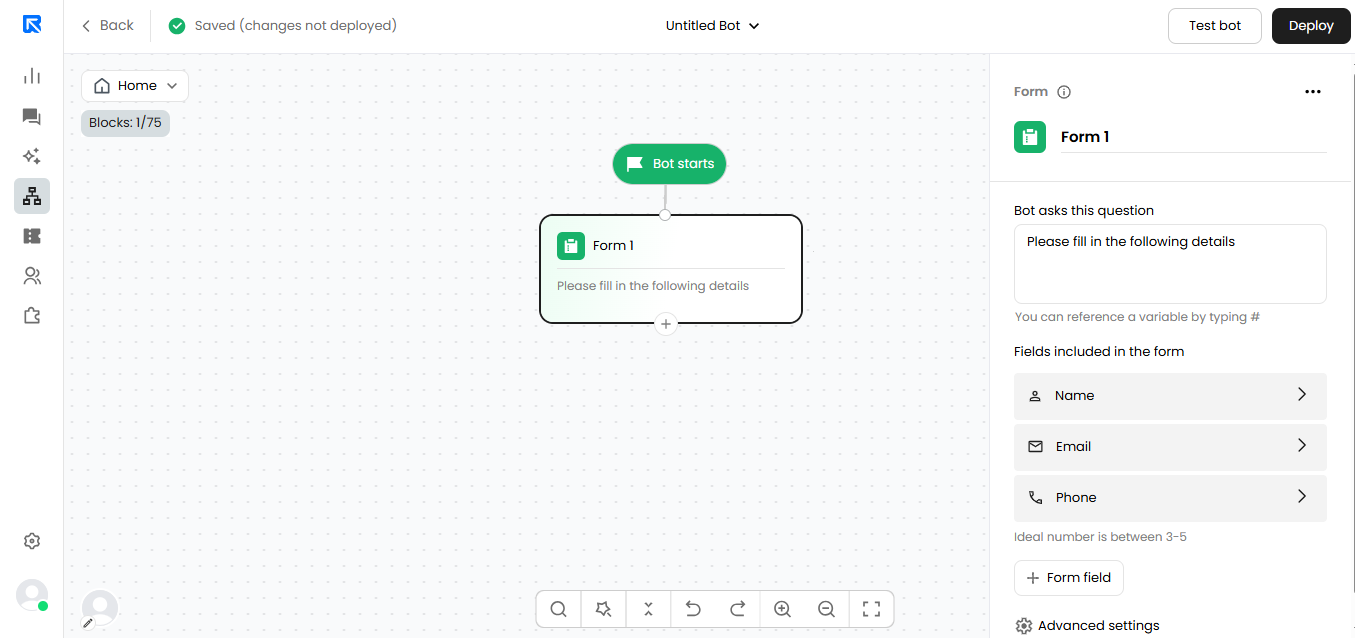
Add the Form block to your flow and click on it to open the configuration panel.
Set the message that will be displayed to the visitor along with the form fields.
Configure each field with the following:
Name — The label visible to the visitor
Validation — Choose from Text, Name, Email, Phone, or Custom
Click + Form Field to add more fields. You can add up to 5 fields per form.
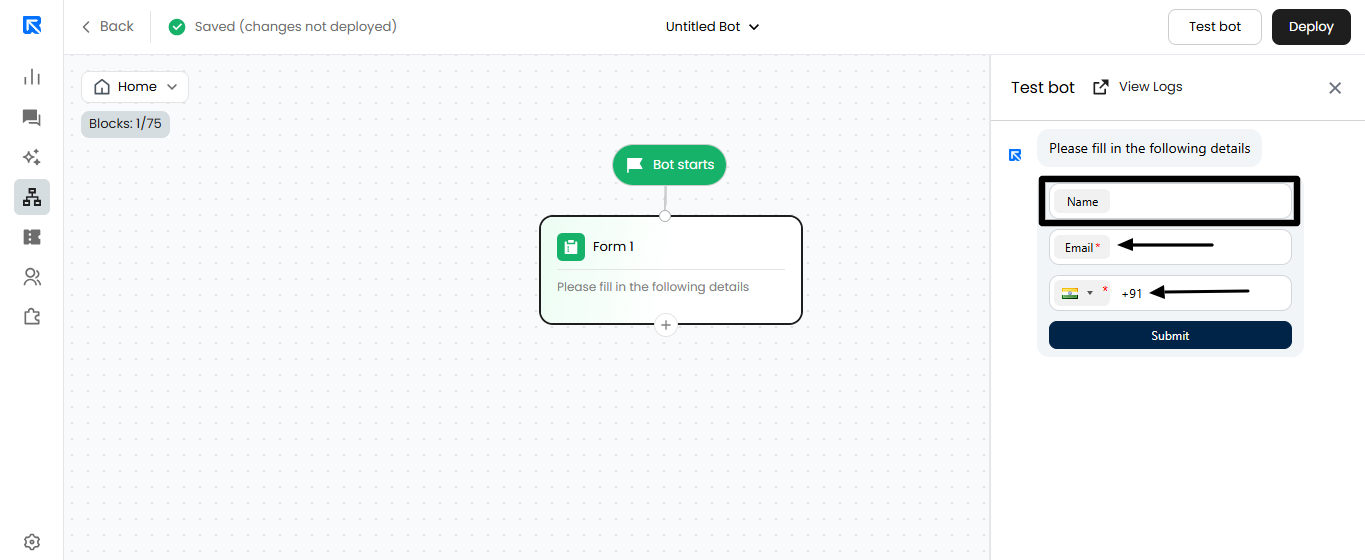
Fields can be marked as Optional, allowing visitors to skip them and continue the flow.
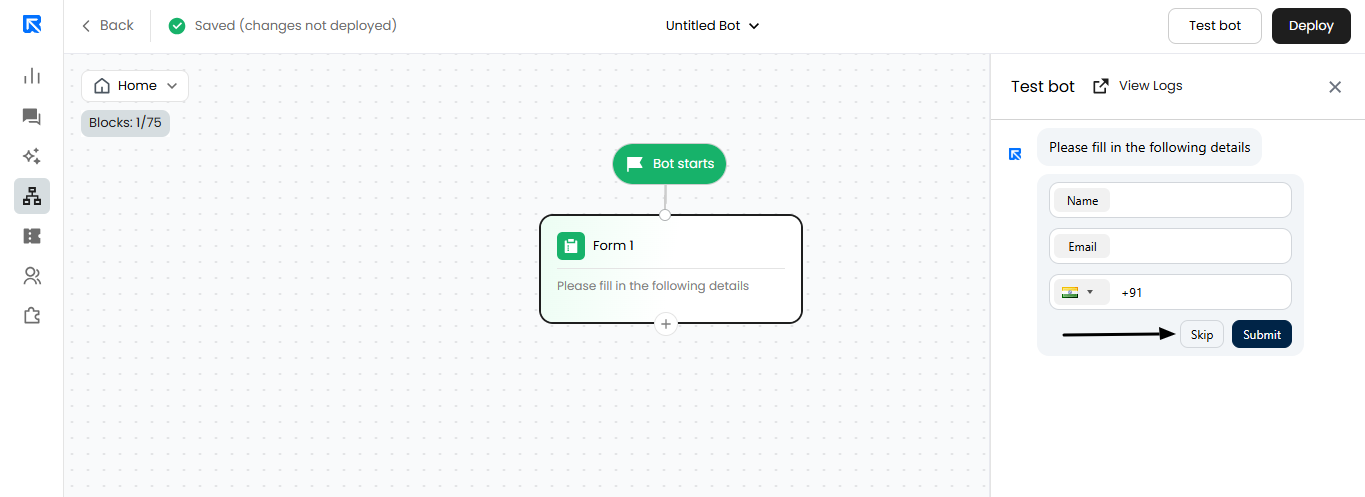
Skip Form
If all fields in a form are marked as optional, visitors will see a Skip option. Clicking it moves them directly to the next block without filling the form.