Action blocks define what the bot does at each step of the conversation - from sending messages to collecting inputs and handing over to a human agent.
The Bot Builder has a collection of over 30 action blocks from which you can use to make the flow of your chatbot.
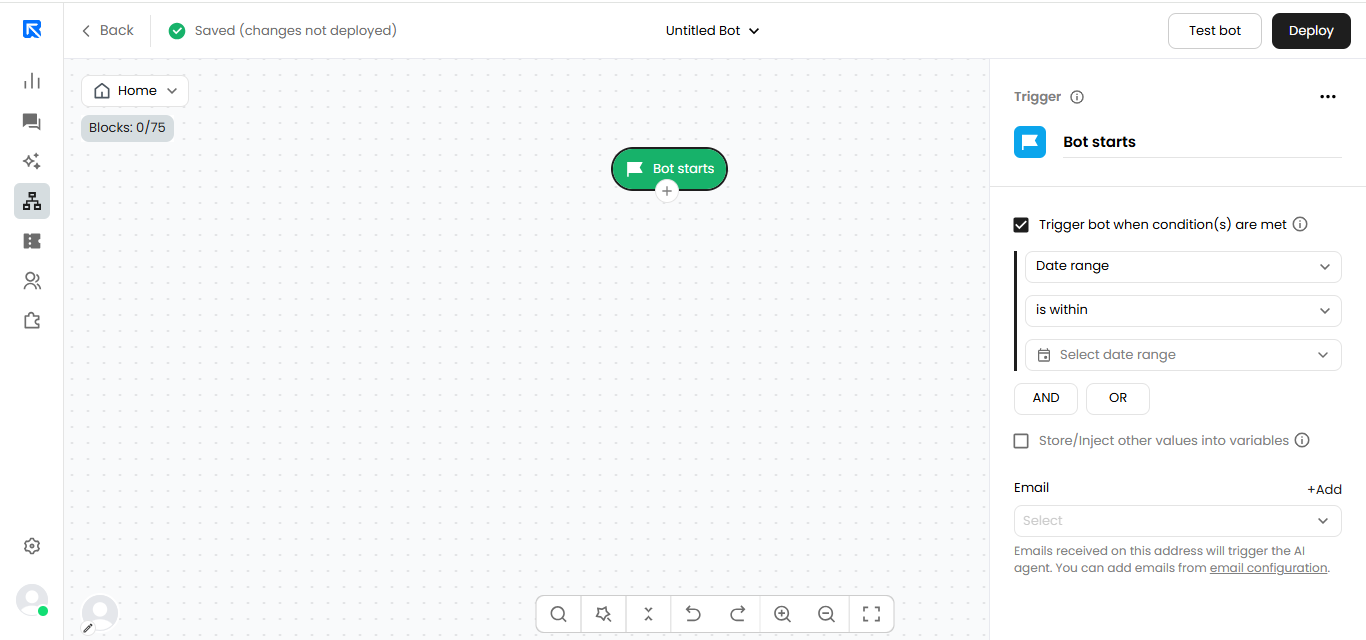
Trigger:
By default, a chatbot always starts with a Trigger.
Trigger - Defines when and where the chatbot should appear. You can set conditions like date range, URL, browser language, Key words, Subject or body - or leave it open to trigger without any conditions.
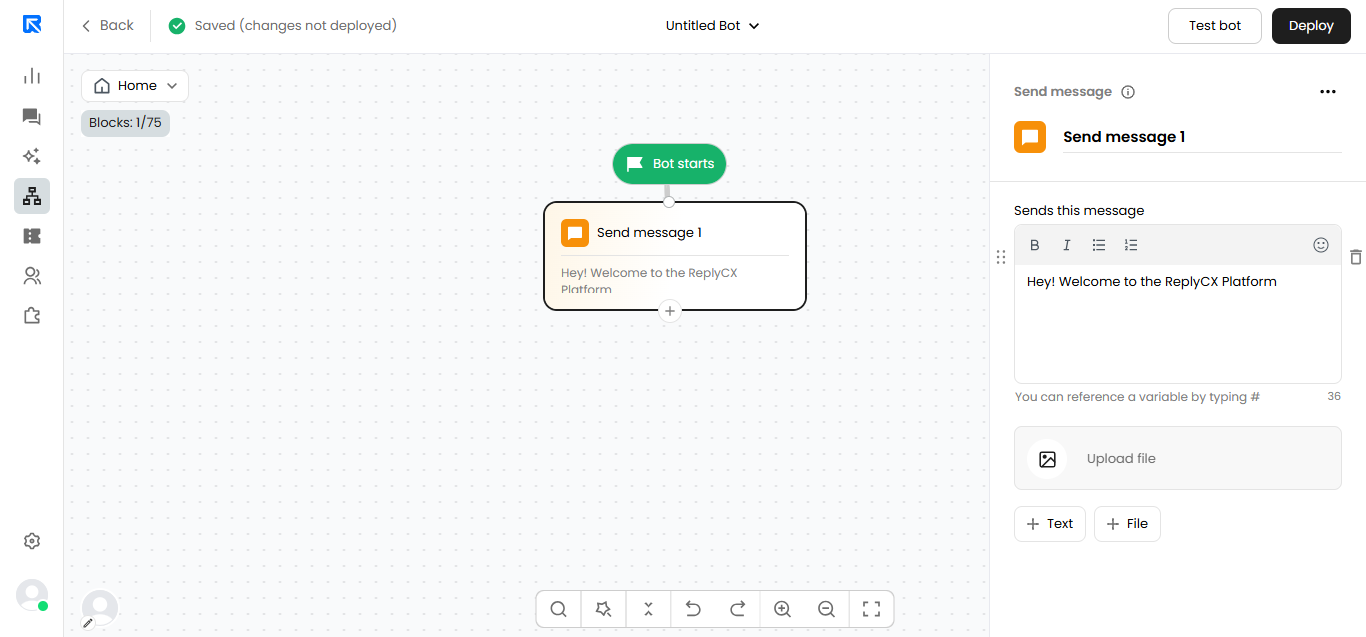
Send Message:
The bot sends informative messages to the visitor without expecting a response. Messages can be plain text or rich media like images and GIFs.
Collect Input:
The bot asks the visitor a question and waits for a valid response before moving ahead. You can apply validations like email, phone, or custom regex and store the response in a variable.
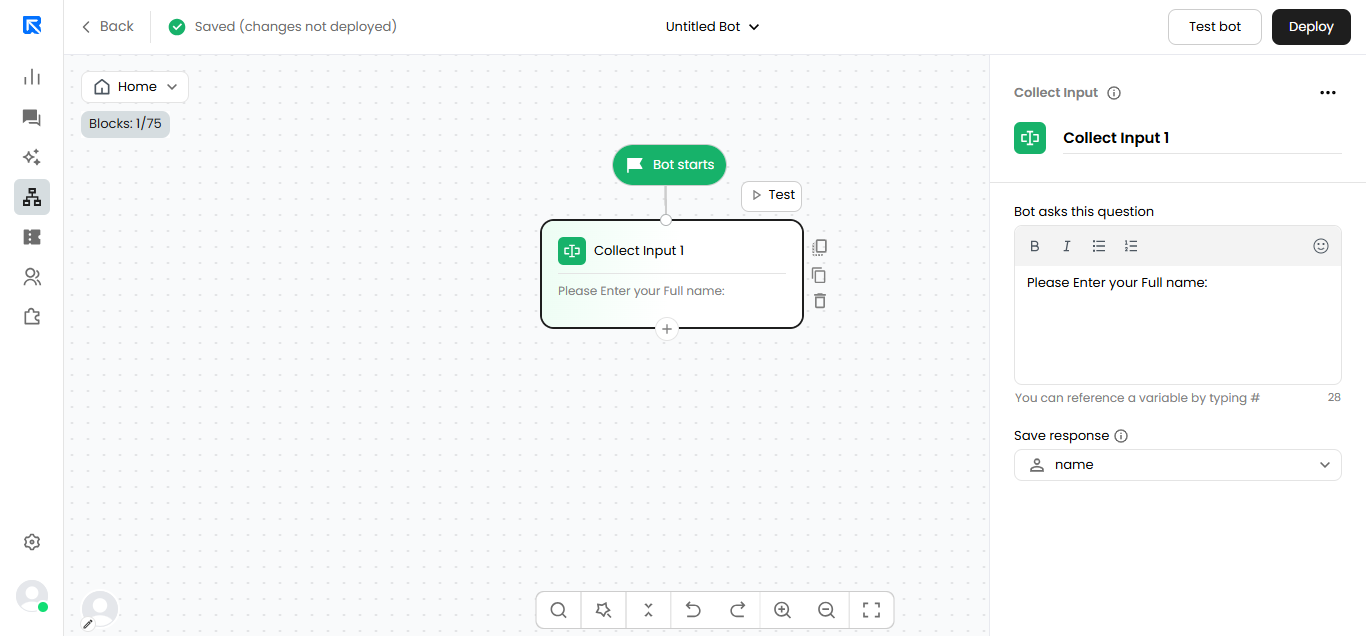
As a good practice, always use distinct variable names to store inputs, else values may override.
Buttons:
Branch the conversation flow using clickable buttons. Each button can either lead to a different path in the flow or open an external URL.
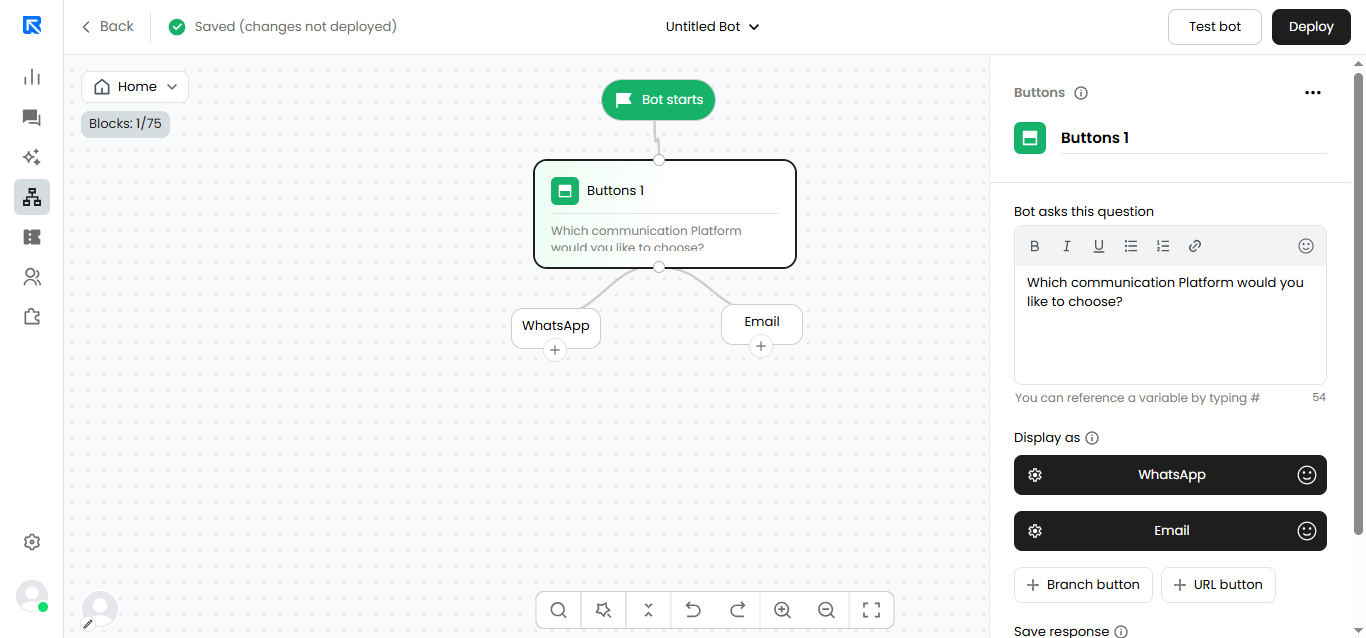
The maximum buttons you can add are 10 The buttons won't disappear after they were clicked on so, the visitor can return to them at any moment during a conversation
Options:
A numbered menu alternative to buttons, designed for channels like WhatsApp and SMS.
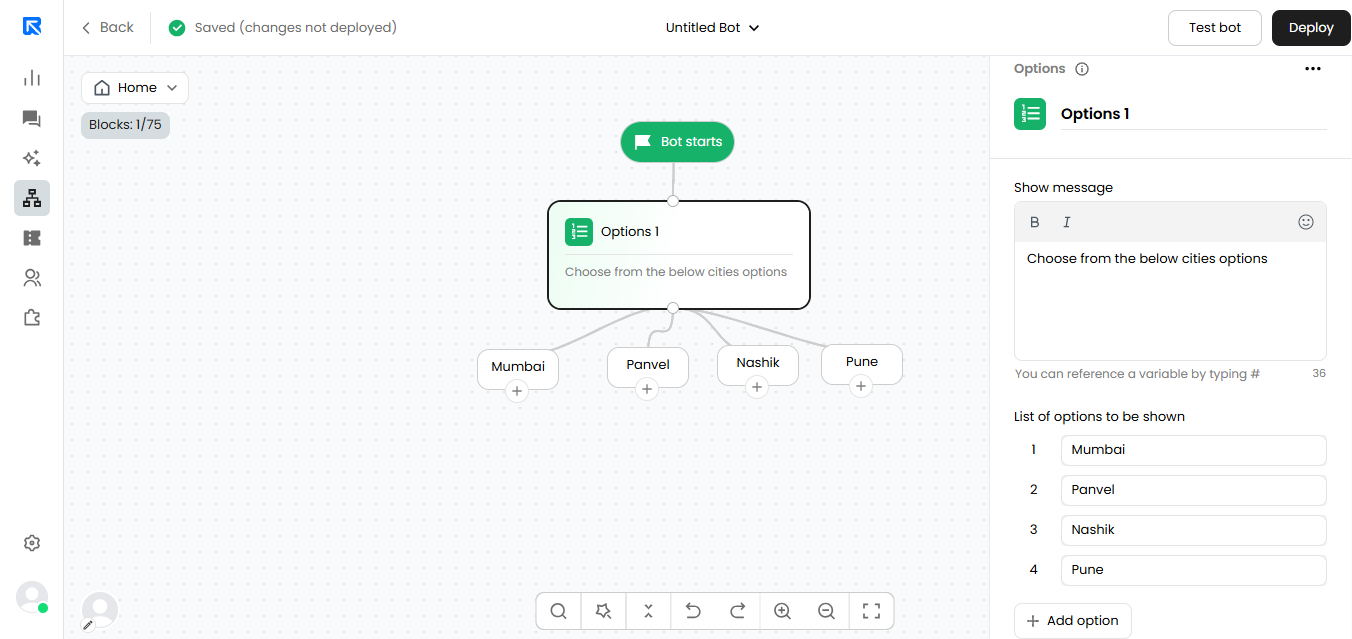
To choose an option, you can type the number as a word like one, two, three or write down the option name itself.
Carousel:
Display products or items in a swipeable card format. Each card includes a cover image, title, subtitle, and CTA buttons to continue the flow.
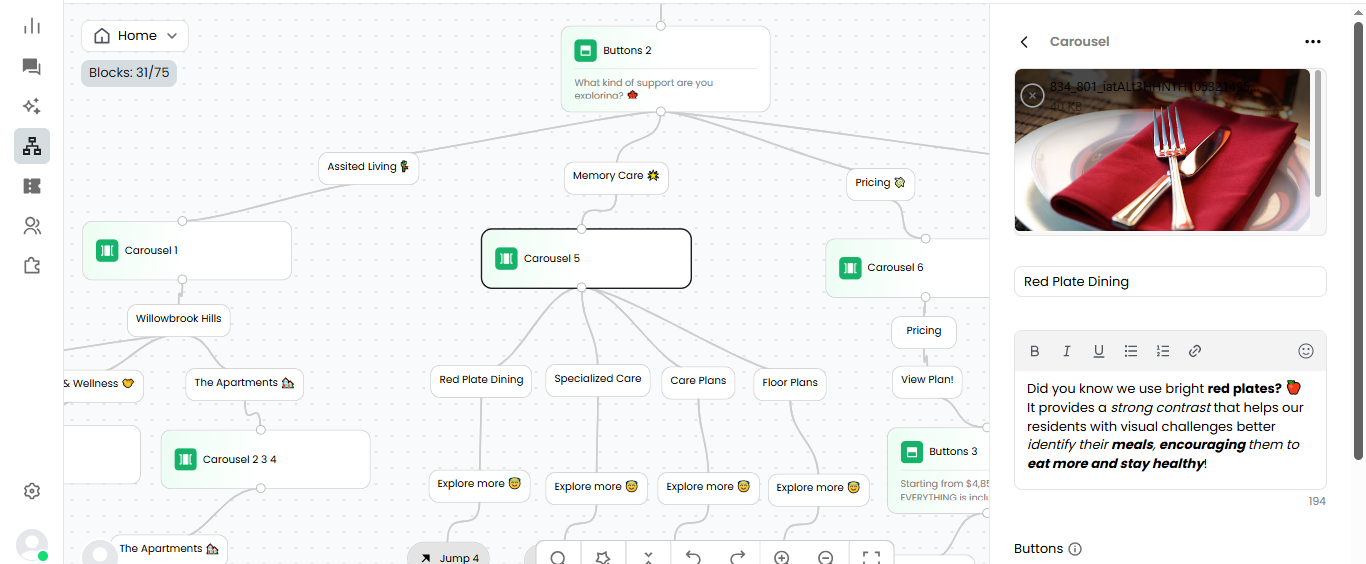
Image Carousel:
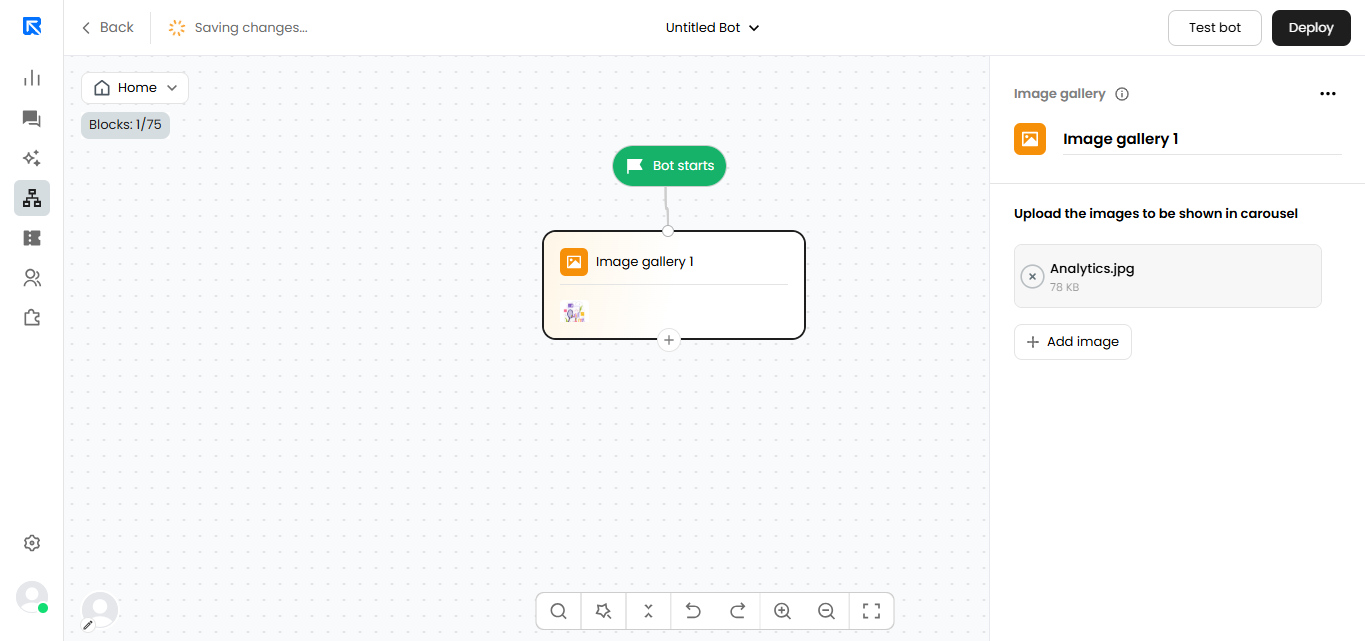
Show a set of images in a scrollable carousel. The bot moves ahead automatically without waiting for any visitor input.
Send Email:
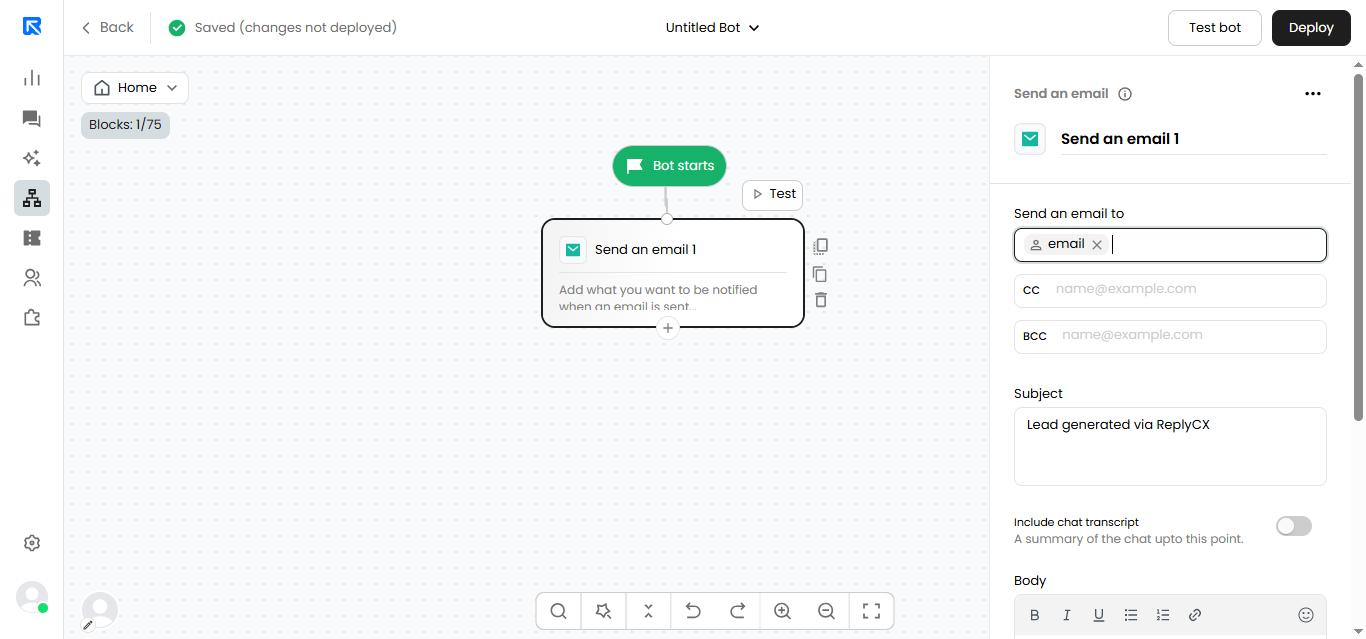
Trigger an email notification to your team when a key event occurs in the flow. You can include chat transcripts, CC/BCC recipients, and a custom email body.
Human Handover:
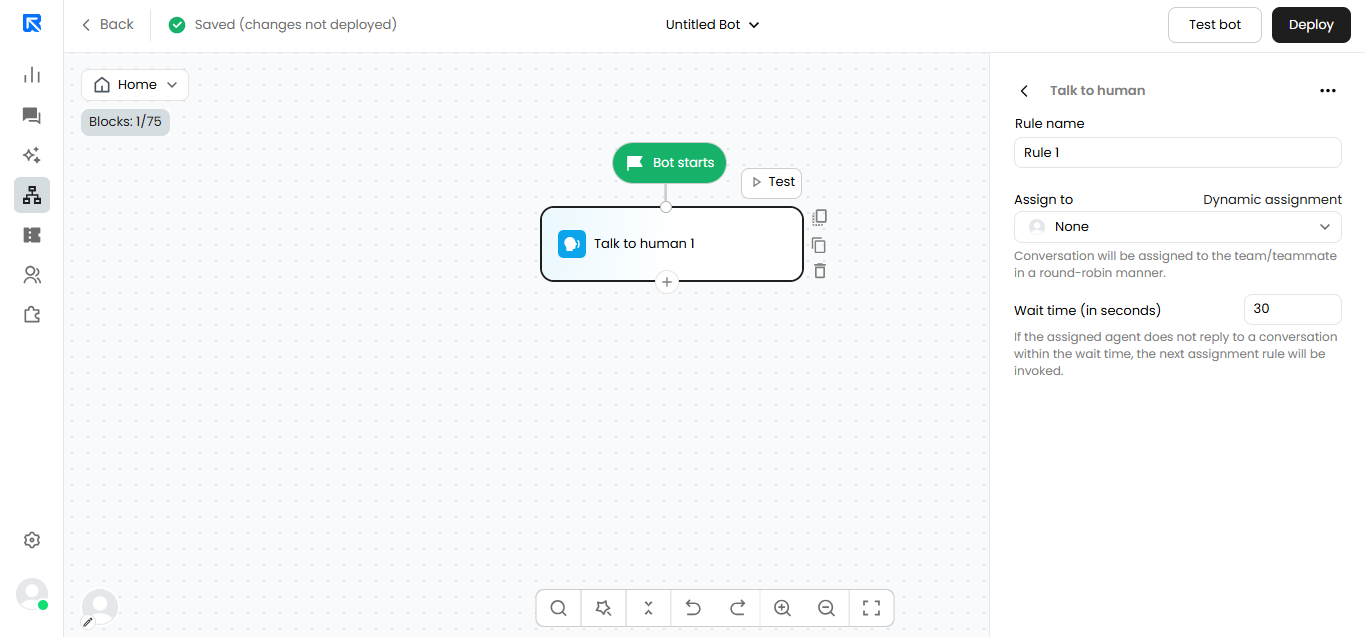
Transfer the conversation to a live agent when needed. The chat moves to the Unassigned tab, with success or failure messages sent to the visitor beforehand.
Calendar:
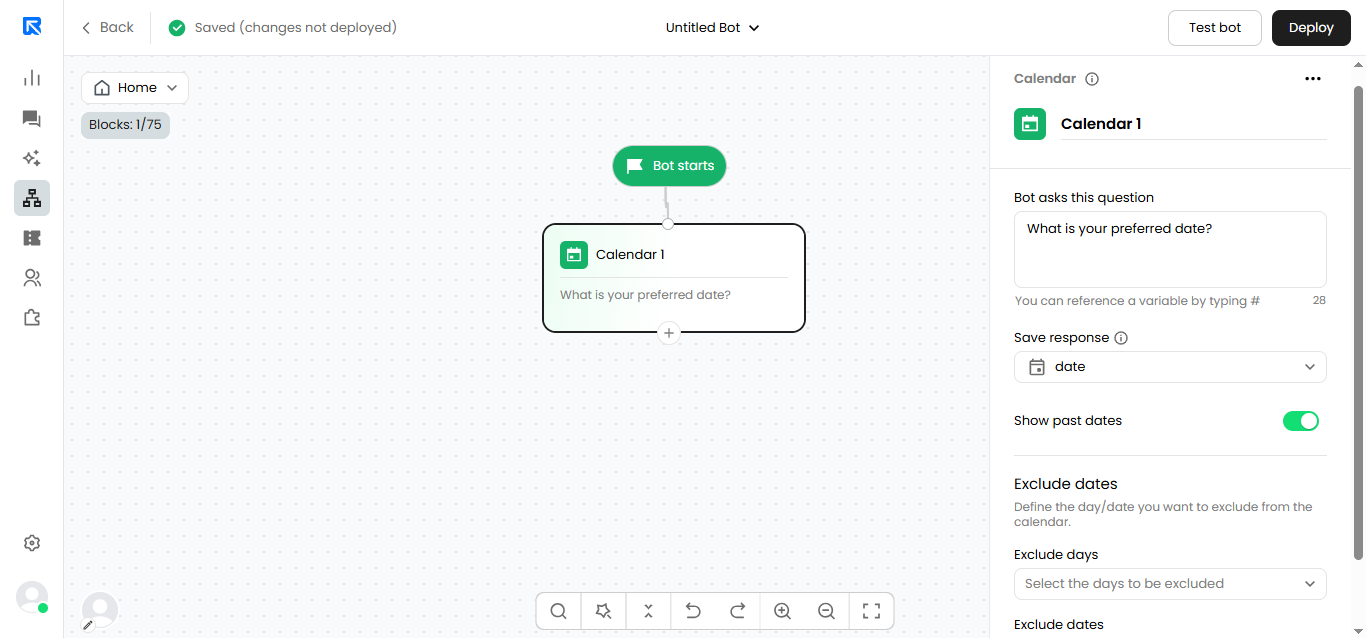
Collect date inputs from visitors with a visual date picker. You can allow single dates or ranges and exclude specific days like weekends or holidays.
File Upload:
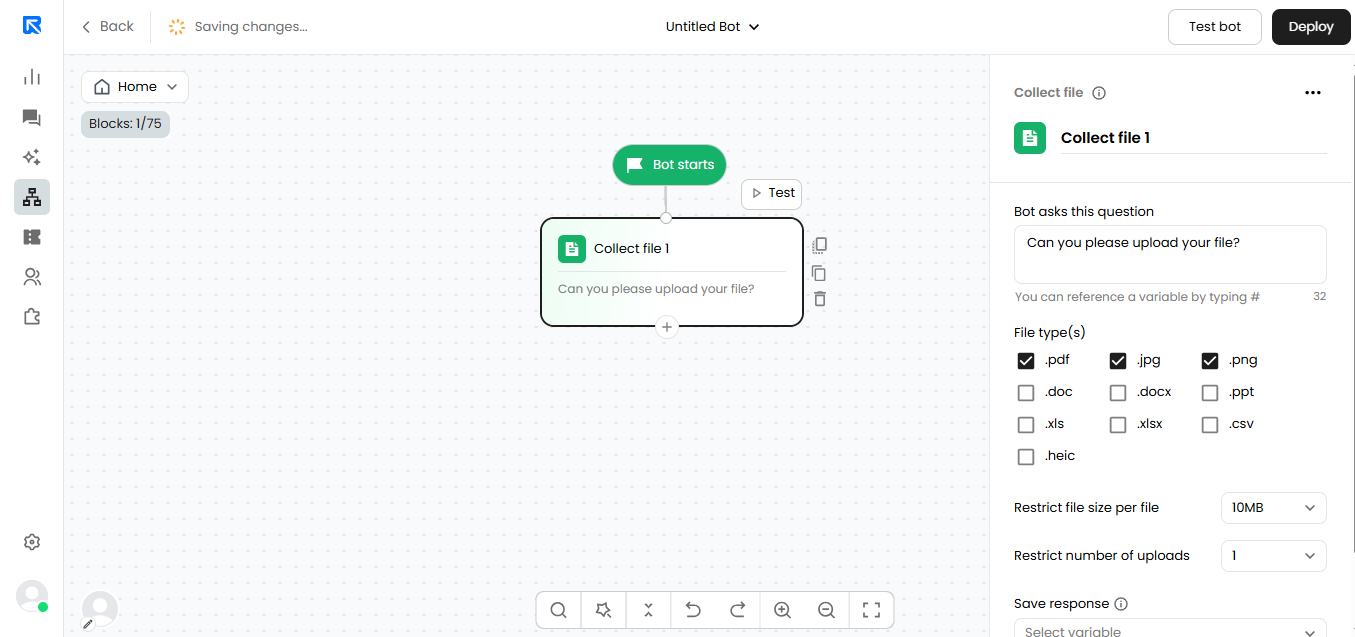
Let visitors upload files during the conversation. You can define accepted file types, maximum file size, and number of files allowed.
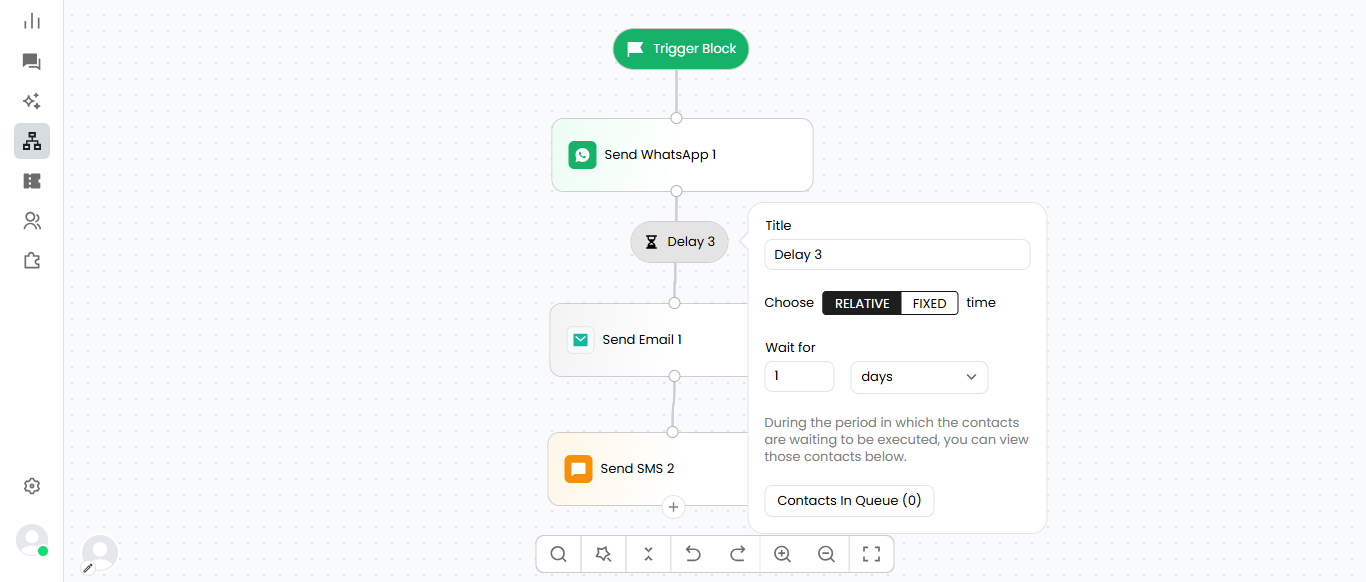
Delay:
Add the waiting Time between two action blocks
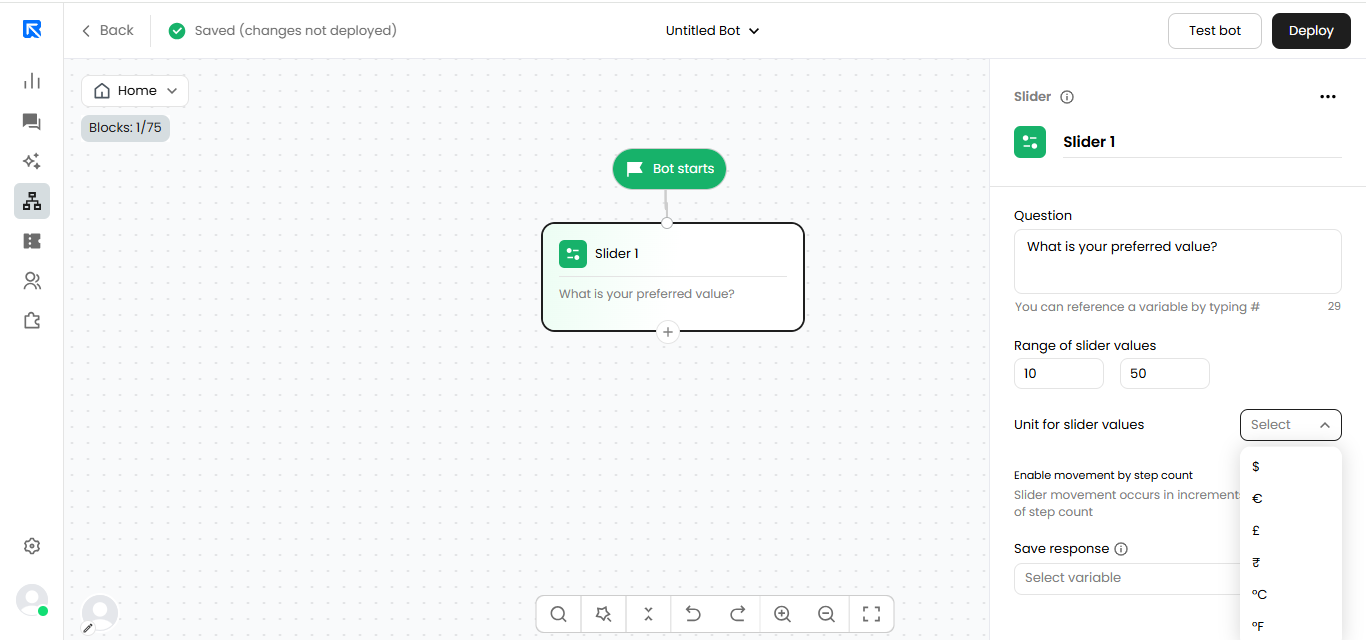
Slider:
Capture a numeric value from visitors using an interactive slider. Set the min, max, unit, and step count to control the range and movement.