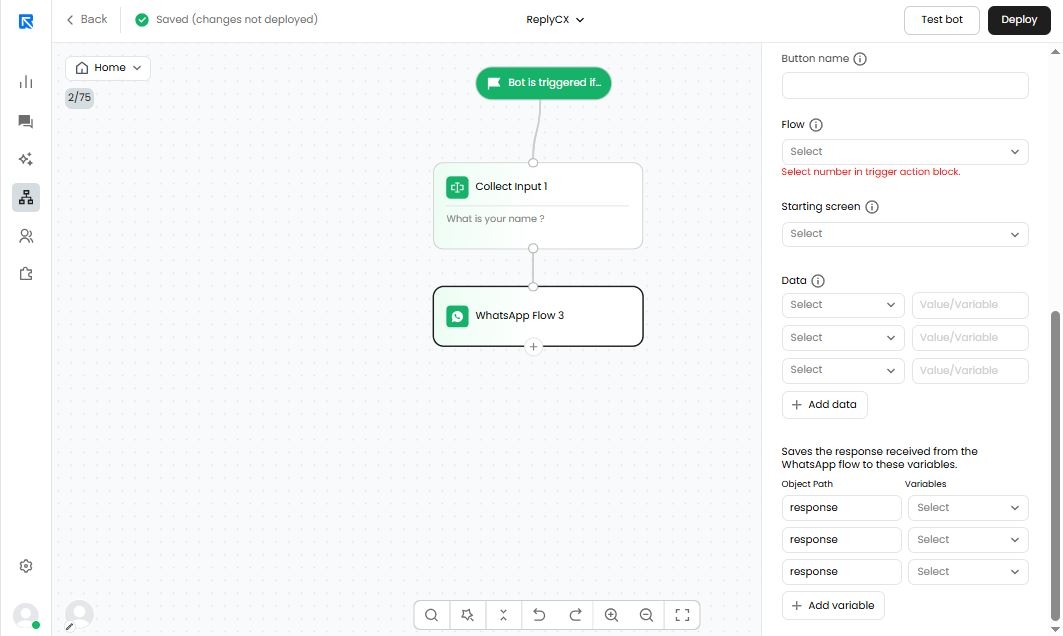
WhatsApp Flows enable businesses to create structured, interactive experiences within their messaging. Using Flows, businesses can design, configure, and customize rich message interactions, helping guide customers through well-organized communication journeys.
Learn more about WhatsApp Flow
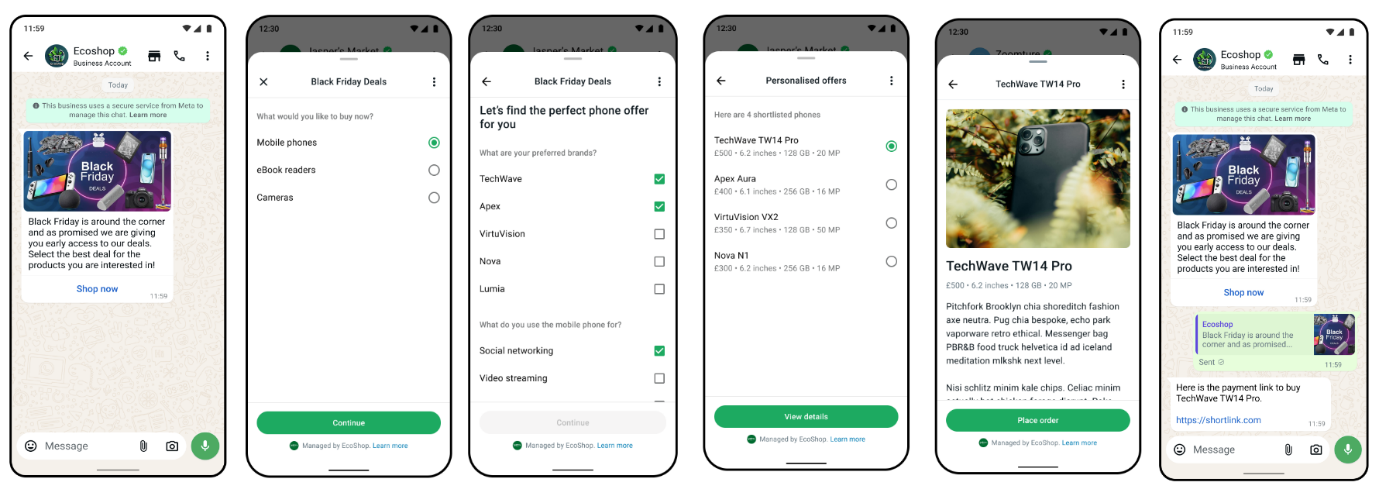
To configure the Whatsapp flow action block:
Step1: Create a template
First create a Facebook Business account.
- Create a Flow on your Facebook Business Account
Go to Facebook Business Settings → WhatsApp Manager, or click here. - Under Account Tools, select Message Templates.
- This will open the drag-and-drop builder for WhatsApp Flows.
(No need to submit a template — we're just accessing the Flow builder.)
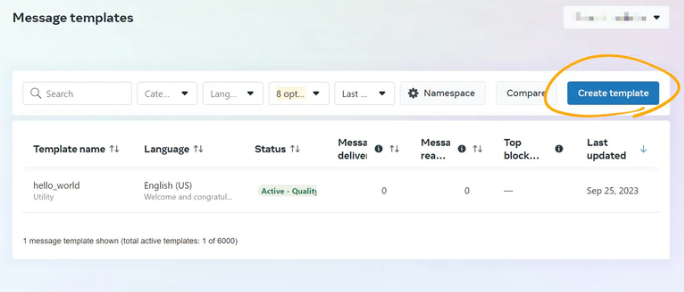
- Select Create a template
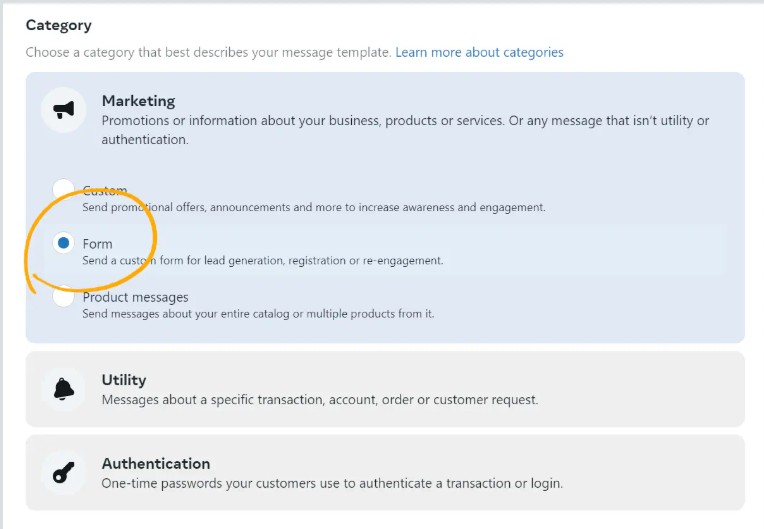
- Choose the category of the flow
- Customize your flow details using the drag-and-drop builder for WhatsApp flows.
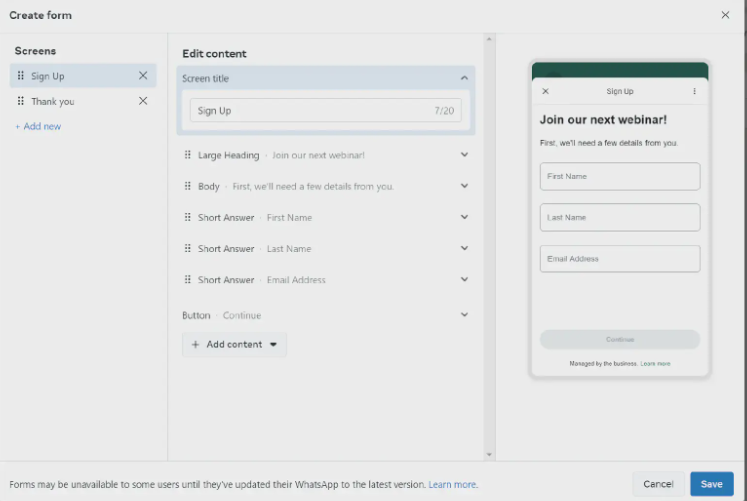
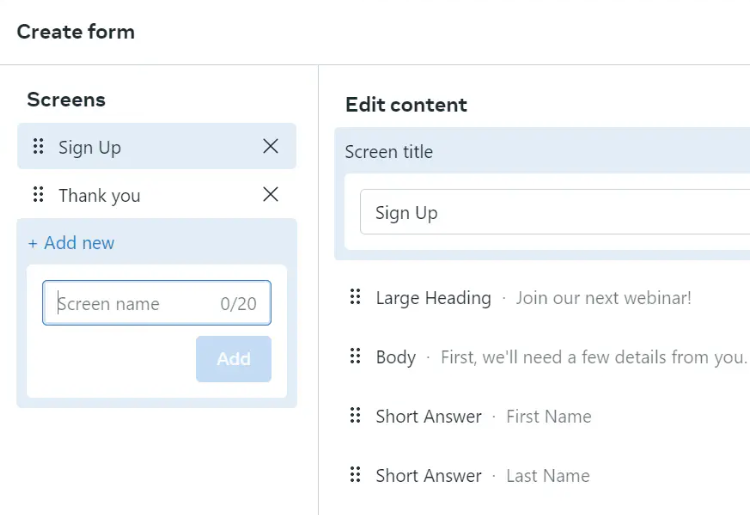
- You can add multiple screens as part of one flow by clicking on + Add new on the left and giving your screen a name.
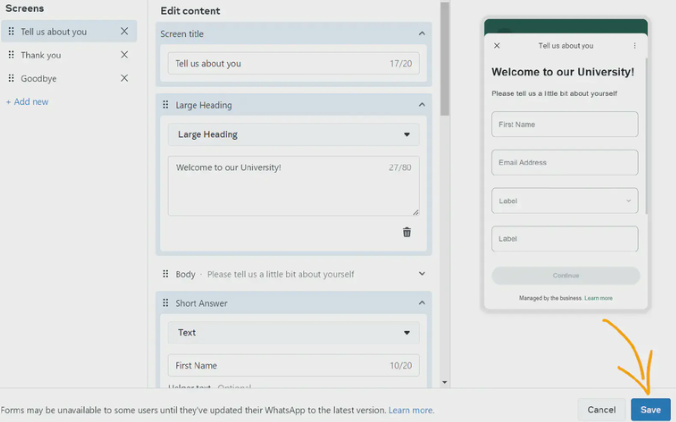
- When you’re done, click Save:
- Your WhatsApp flow is now created and you can find it in the WhatsApp manager menu -> Account tools, select Flows.
Step 2: Setup the "WhatsApp flow" action block
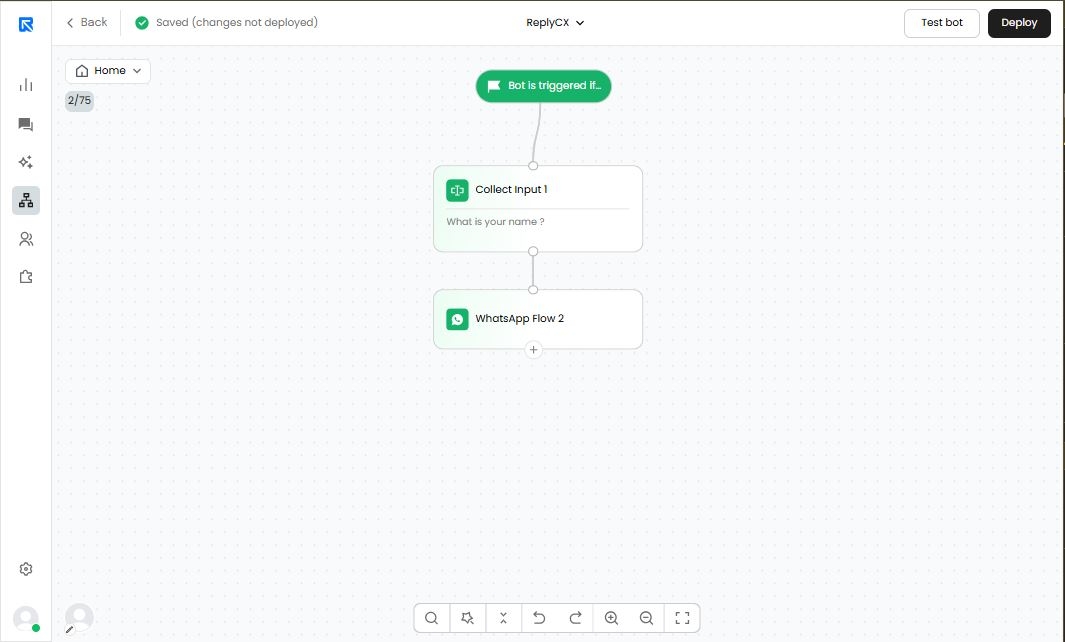
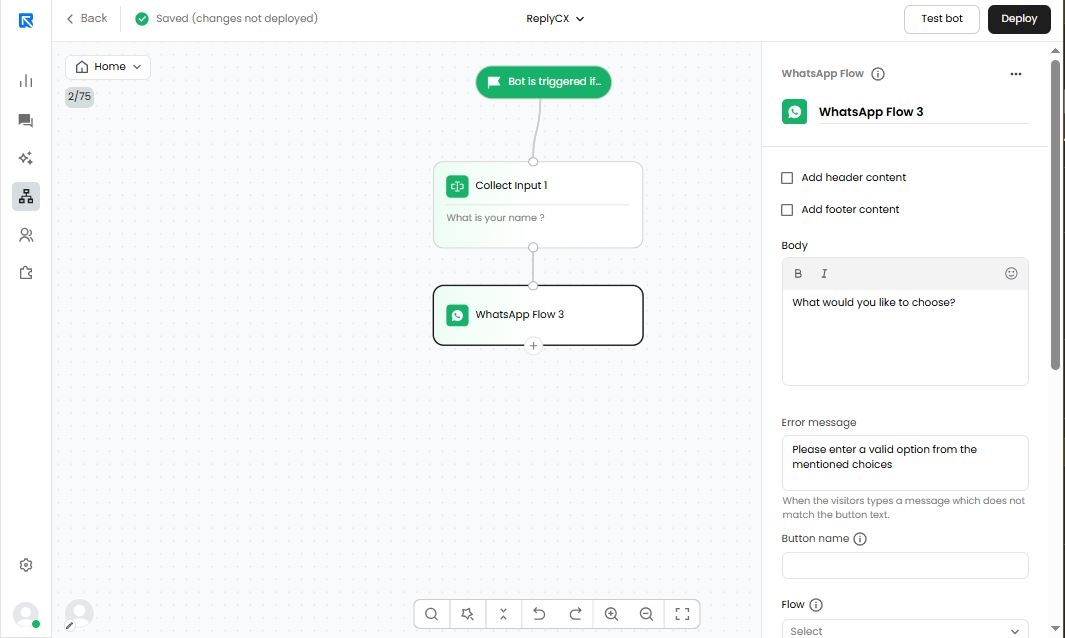
Header
Optional. Displays text in bold, acting as a title.
Body
The main message or question prompting the user, e.g.,
"Select the service you are interested in."
Footer
Optional. Shown in small grey text, typically used for disclaimers or additional notes.
Button Name
Label for the button that triggers the list (e.g., "Choose", "Select"). Clicking this button opens the list in a drawer format.
Error Message
Displayed if the user types free text instead of selecting from the list (e.g., “Please select an option from the list.”).
Step 3: Select and setup the WhatsApp flow.
- Choose the flow from the dropdown
- And the starting screen you want to launch when the flow is executed.
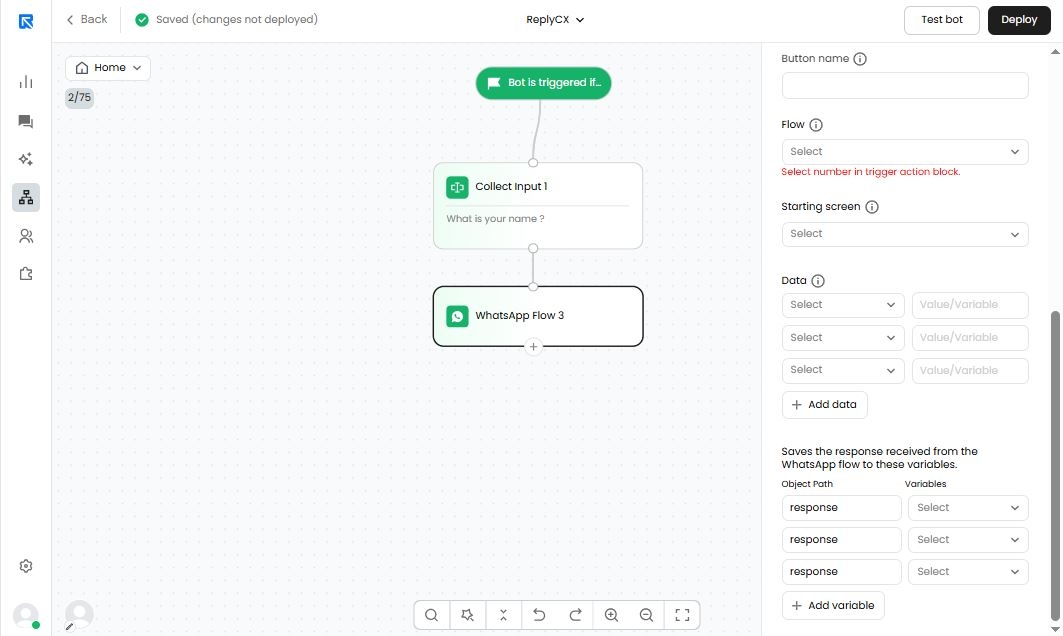
- Next, select the data that you want to send from Replycx to the WhatsApp flow
- Map the fields fetched from the flow with the values/variables that you want to send
This is done to make the flow dynamic and contextual to the user's interactions.
Step 4: Store the responses into variables
After the flow is executed and the user has completed interacting with it, choose the results that you want to store into variables for further use in the chat flow.
This could be things like dropdown selected, input added etc.
Map the response path with the variable that you want to store it in.