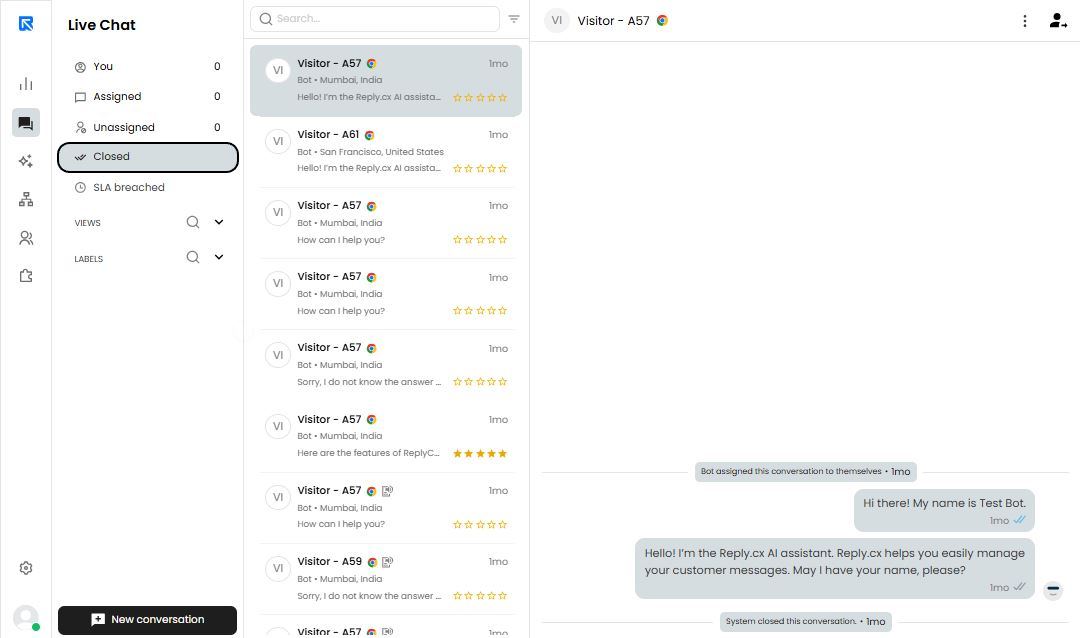
ReplyCX offers users the freedom to tailor their live chat screen experience however they like - giving them full control over what information is visible, and which elements remain out of sight.
**Following are the areas in which the users can make modifications:**
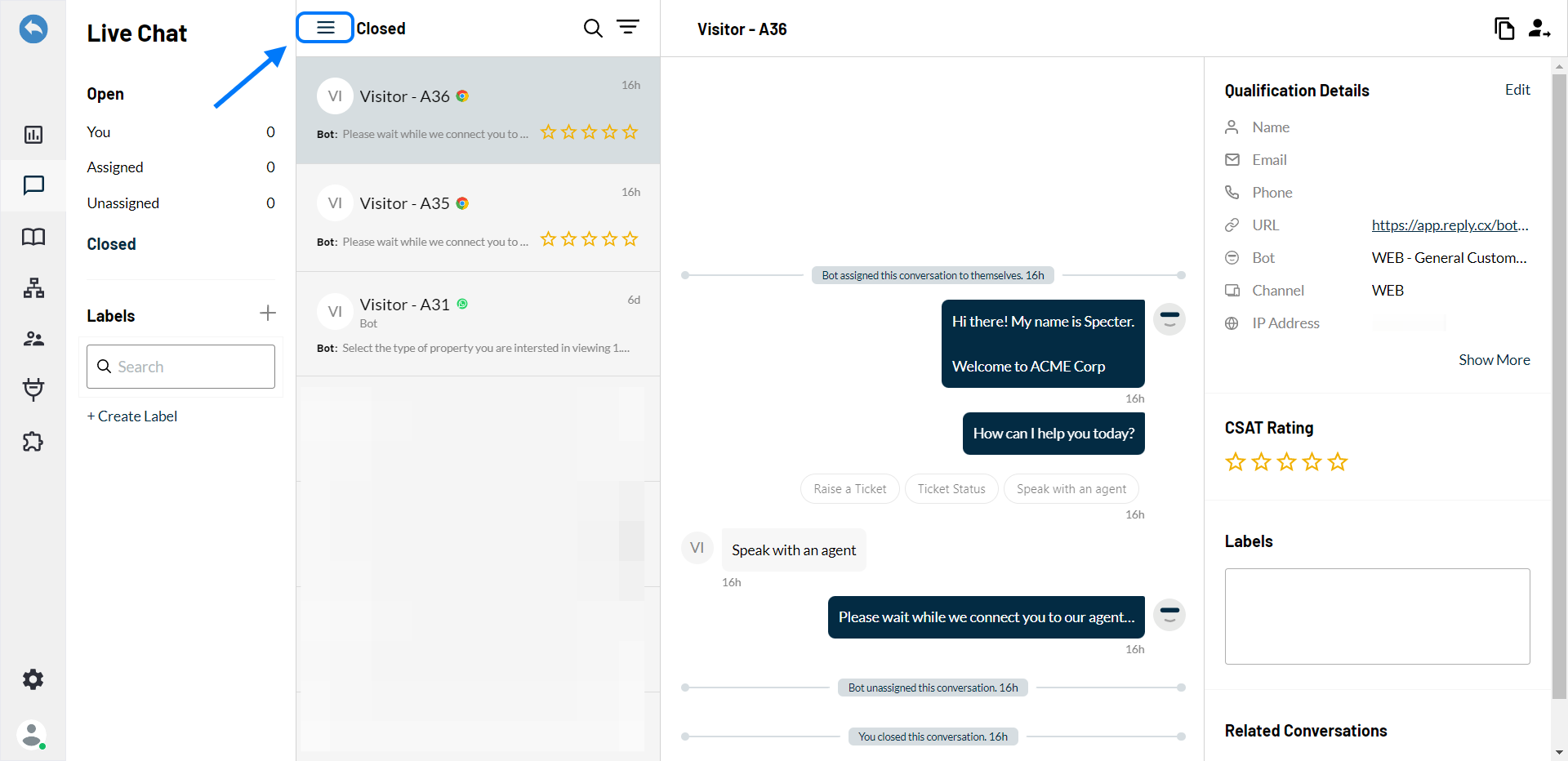
* Show / Hide Left menu bar (Chat status, Labels).
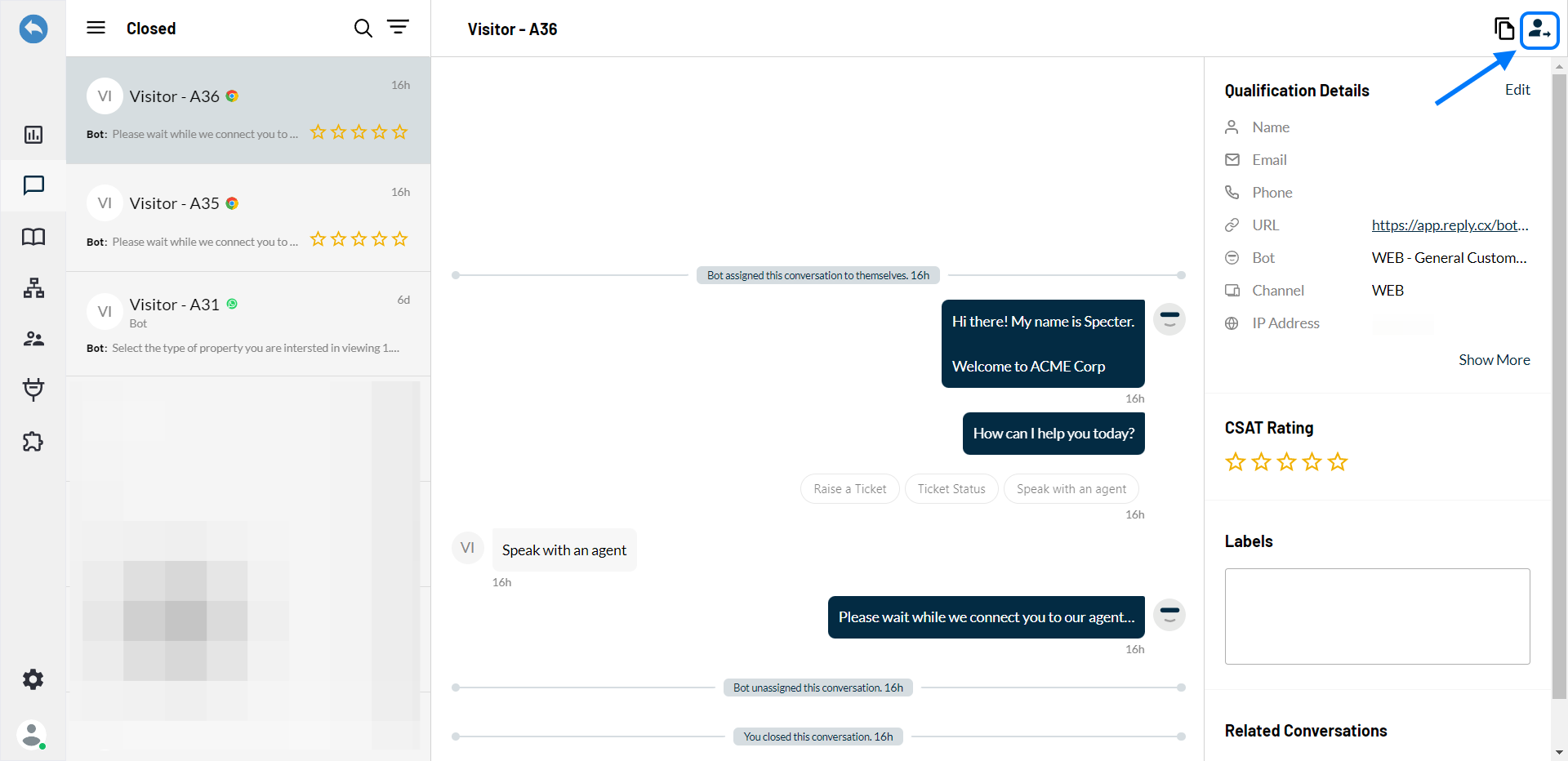
* Show / Hide Right menu bar (Qualification details, Labels, Related conversations).
### **Hide or show left menu bar:**
Hiding the left menu bar will hide options like chat status, labels etc.\
Users can follow the below steps in-order to hide / show the left menu bar:
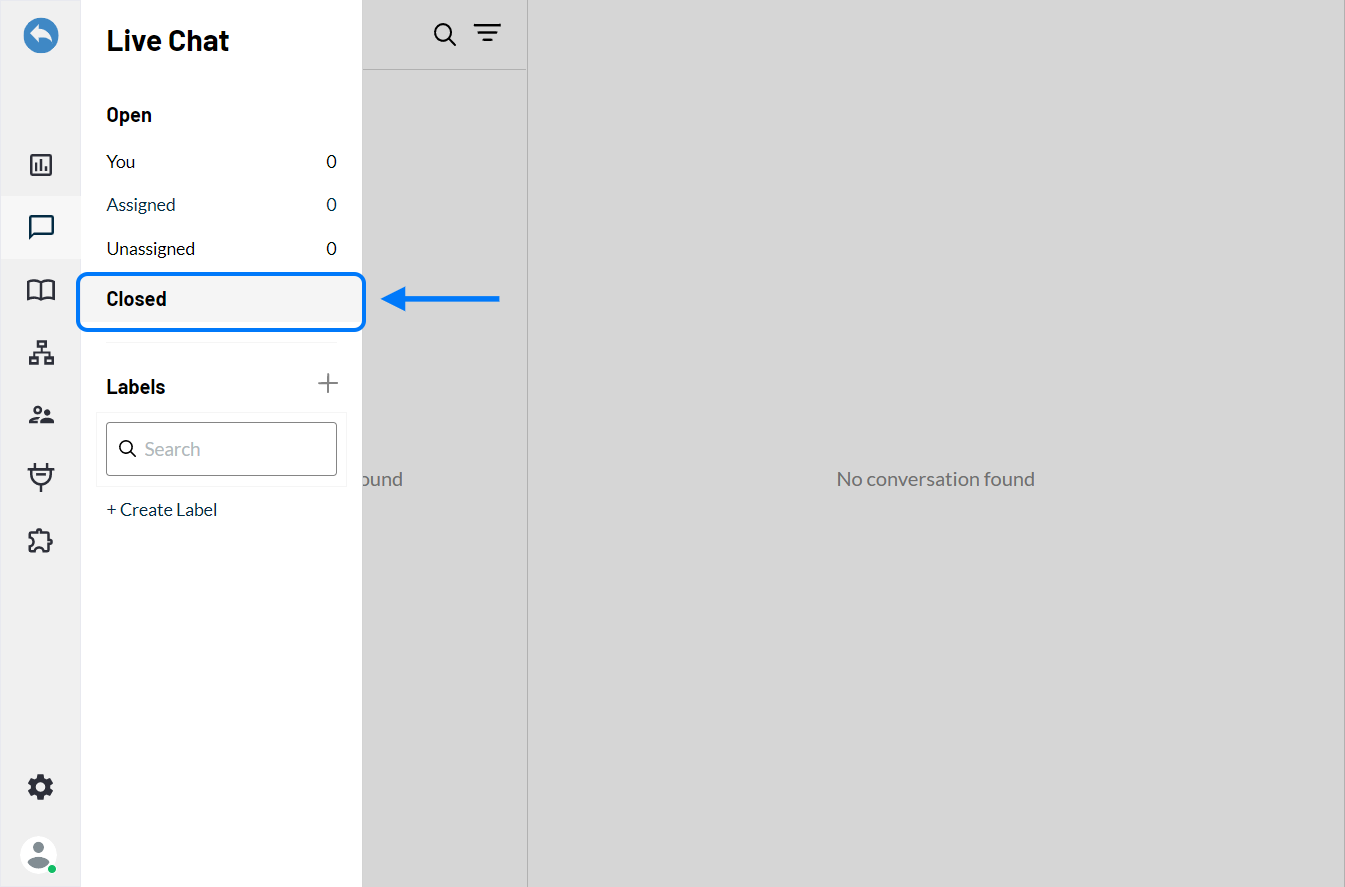
1. Go to **'Live Chat'** section.
2. Click on the **'Closed'** chat conversation section.
3. Click on the **'Menu Gear'** icon at the top to hide or show left menu bar.
### **Hide / show right menu bar (Qualification details, labels, related conversations):**
Hiding the left menu bar will hide options like chat status, labels etc.\
Users can follow the below steps in-order to hide / show the left menu bar:
1. In the **'Live Chat'** section, go to the **'Closed'** chat conversation section.
2. Click on **‘Person with right arrow’** icon at the top right corner to hide / show the right menu bar.
> The arrow will point left icon if the bar is already hidden and that the user would like to view the bar
> ReplyCX will optimize the live chat experience based on your device's screen size; when you use a device with at least 1440px of width, all sections are displayed.
> A screen size of 1280 - 1440 pixels allows you to collapse the contact column for a more concise view, while below 1080px collapses both conversation list and contacts.